

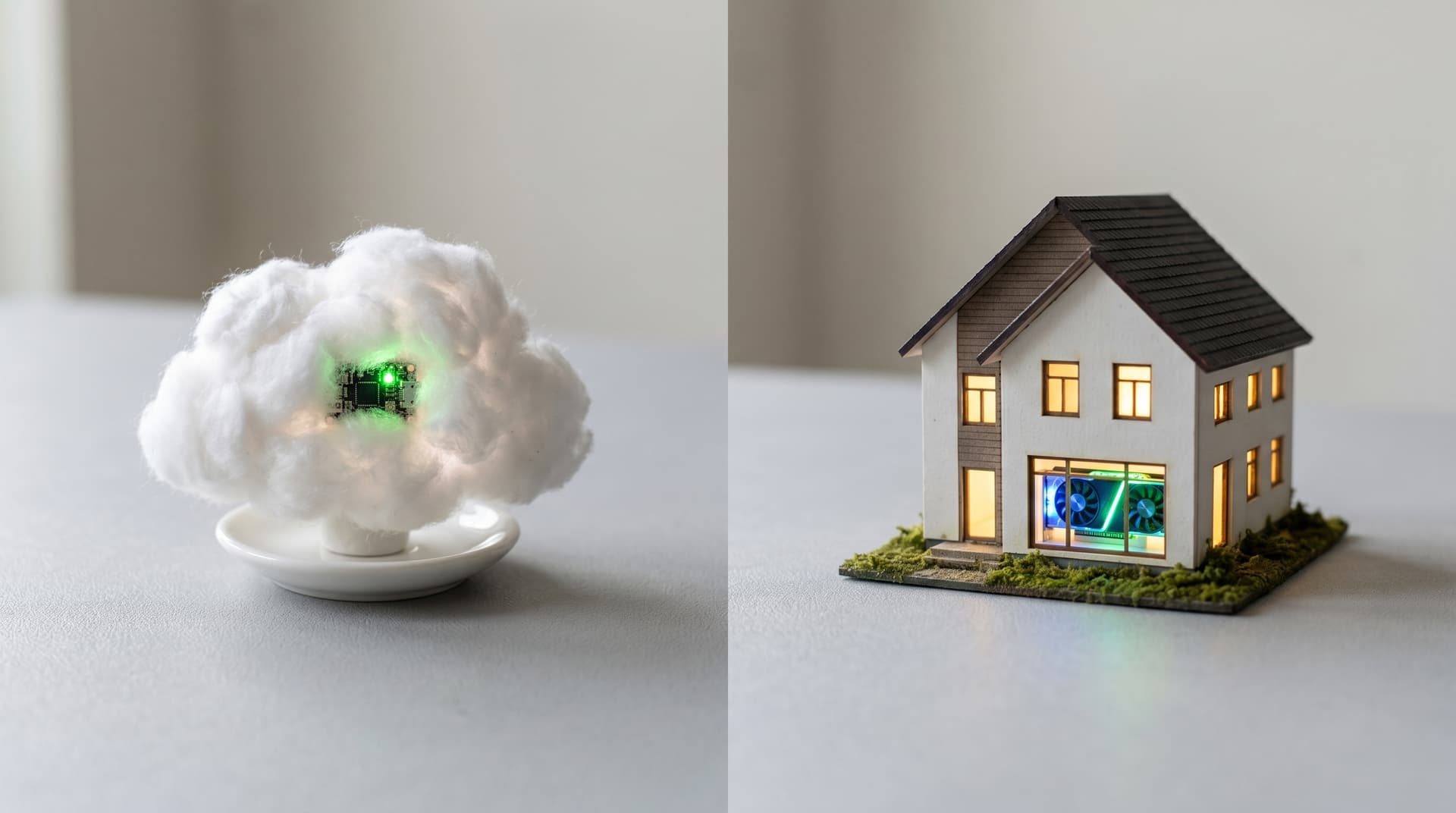
Local AI Server vs Cloud GPU: The 2026 Hardware Guide
If you work with local LLMs daily in 2026, you will hit the same question eventually: Is building a local AI server worth it, or should you stick with the cloud?
I just worked through this decision myself. Not as a thought experiment, but as an actual purchase for our agency. Two founders, remote-first, daily need for coding assistants, penetration testing, and content creation. The result: a clear winner and a hardware configuration I am sharing openly here.
Why the Cloud Stopped Working
I currently run a GPU on Google Cloud Platform. It works, but with friction:
- Spin-up time: 3 to 5 minutes before the VM is ready. Sounds minor. Kills your flow when coding.
- Cost: A comparable cloud GPU (A6000 Ada or L40S) runs $1.00 to $1.50 per hour. Always-on, that is $700 to $1,000 per month.
- Terms of Service: Cloud providers filter prompts. If you analyze exploit code or push vulnerability scans through an LLM, you risk account suspension. For penetration testing, that is a dealbreaker.
The alternative: a server that runs 24/7, has zero latency, no censorship filters, and pays for itself within months.
The Architecture: Thin Client + Home Server
The most important insight from my research: Do not buy an expensive AI laptop. Separate your daily driver from your compute.
The thin client is your daily companion: a lightweight notebook with a good keyboard, strong battery, and great display. A MacBook Air, a ThinkPad, or a Snapdragon X Elite device. Cost: $800 to $1,200. My existing MacBook Pro M1 fills this role perfectly.
The workhorse server sits at home and serves compute via API. Ollama or vLLM load models into VRAM and expose OpenAI-compatible endpoints. Your IDE plugin, your Python script, or Open WebUI connects to the same IP whether you are at home or on a train.
The GPU Decision: RTX 5090 vs Dual RTX 4090 vs Mac Studio
For local LLMs, only one metric matters: VRAM. More VRAM means larger models fit without spilling into system RAM, and faster token generation.
| App | VRAM (total) | Bandwidth | Max Model Size | GPU Price | CUDA Support |
|---|---|---|---|---|---|
| 1x RTX 5090 | 32 GB GDDR7 | 1,792 GB/s | 32B (Q4/Q8) | from ~$3,200 | Yes |
| 2x RTX 4090 | 48 GB GDDR6X | 2x 1,008 GB/s | 70B (Q4) | from ~$3,000 | Yes |
| Mac Studio M4 Ultra 128 GB | 128 GB Unified | 819 GB/s | 100B+ (Q4) | from ~$4,000 | — |
Single RTX 5090 (32 GB)
The cleanest solution. One slot, no multi-GPU headaches, GDDR7 with per NVIDIA specs 78 percent more bandwidth than the RTX 4090. For 14B to 32B models (the sweet spot for coding assistants like Qwen 3.5 Coder), the 5090 delivers the fastest token generation of any consumer GPU: according to llama.cpp benchmarks, roughly 7,200 tokens per second on an 8B model.
Limit: 70B models do not fit fully into 32 GB. When spilling into system RAM, speed drops to 2 to 3 tokens per second.
Dual RTX 4090 (48 GB)
Two RTX 4090s cost roughly the same as one RTX 5090 but offer 48 GB of VRAM. Important note: the RTX 4090 was officially discontinued in late 2024. New units in 2026 are only available as remaining stock or on the secondary market. That is enough for a 70B model in Q4 quantization. Or: one card for your coding assistant, the other for image or video generation. True task isolation.
Caveat: No NVLink on the RTX 4090. The cards communicate over PCIe, costing roughly 10 to 15 percent performance in tensor parallelism. A dual setup also requires a 1,600W power supply and a case with serious airflow.
Mac Studio with 128 GB Unified Memory
If running the largest possible models is the goal: 128 GB unified memory means the GPU accesses the entire memory pool. A 100B model in Q4 runs without issues. Add to that: near-silent operation, significantly lower power draw than an NVIDIA system (according to Apple, under 100 watts sustained), and native Ollama support on macOS.
Caveat: No CUDA. The open-source ecosystem for image generation (Flux, Stable Diffusion 3) and video (HunyuanVideo) is heavily optimized for NVIDIA. If you primarily run text LLMs for coding and reasoning, this is not a problem. If you plan ComfyUI workflows, expect compatibility friction.
What Changes When You Add Image and Video Generation
If you plan to run ComfyUI workflows for image generation (Flux, Stable Diffusion 3) or local video generation (HunyuanVideo) alongside your coding LLMs, the math changes entirely. Video generation is the hardest workload for consumer hardware:
- VRAM hunger: Even a few seconds of high-resolution video requires 24 GB of VRAM as the absolute minimum. Add ControlNets and LoRAs, and the demand climbs fast.
- Sustained load: Unlike LLM inference (short bursts), video generation runs at 100 percent GPU utilization for minutes at a time. On a laptop, that means fans at maximum, hot keyboard, thermal throttling, and a dead battery in 30 minutes.
- CUDA is mandatory: The open-source ecosystem for image and video generation is almost exclusively optimized for NVIDIA GPUs. Mac users fight compatibility issues in PyTorch and wait for community patches.
For this workload, the dual RTX 4090 configuration becomes the clear winner: one card exclusively for your coding assistant, the other for ComfyUI. Both run in parallel without competing for VRAM. The server at home handles the sustained load while your laptop stays cool and quiet.
Our Choice
We are buying the single RTX 5090. Our daily work revolves around 14B to 32B coding models and security analysis. The 5090 offers the best token speed per dollar for that workload. Video generation is not our current focus. If image and video generation is a core part of your workflow, seriously consider the dual-GPU route above.
Complete Hardware Configuration (2026 Pricing)
This build is optimized for quiet, reliable 24/7 operation as an API server. All prices are market prices as of April 2026 (sources: Geizhals, Newegg, manufacturer specs):
Budget Option with RTX 4090
If you do not need 32 GB VRAM: A single RTX 4090 (24 GB) costs roughly $1,500. That brings the total build down to approximately $4,000. More than enough for 14B models and standard coding tasks.
Cloud vs Local: The Math
| App | Monthly Cost | Availability | Content Filters | Upgradable | Break-Even |
|---|---|---|---|---|---|
| Cloud GPU (On-Demand) | $700–1,000 | 3–5 min spin-up | Yes (TOS) | — | — |
| Local Server (RTX 5090) | $25–50 electricity | Instant | — | Yes | 5–7 months |
The breakeven math: A local server needs to be always available, so the fair comparison is an always-on cloud setup. At $1.20 per hour and 720 hours per month, cloud costs roughly $860 per month. The local server costs $5,670 once plus $25 to $50 in electricity. After roughly 7 months, the investment is recovered. Everything after that is pure savings.
When cloud still makes sense: For rare, massive training runs that exceed your local GPU. Providers like RunPod or Modal boot in seconds and bill by the second. Use them as a supplement to your local server, not a replacement.
Multi-User Setup for Remote Teams
We are a two-person agency. The server sits at my home, my co-founder accesses it remotely. Here is how it works:
Tailscale as the Secure Bridge
Tailscale builds an encrypted mesh VPN (based on WireGuard) between all devices. No ports to open on your router, no dynamic DNS configuration. Install on the server and both laptops, done.
- Local: Traffic routes directly over your WiFi.
- Remote: Tailscale tunnels encrypted traffic back to the home server. Same IP, no matter where you are.
Shared Services
Both of us access the same models. Open WebUI manages separate chat histories. The IDE plugin (Continue.dev or Cline) points to the Ollama API in VS Code and works like a private Copilot, no subscription required.
VRAM Management for Two
A single RTX 5090 has 32 GB. A 14B coding model uses roughly 8 GB. That leaves 24 GB free. As long as both users do not simultaneously start a 32B model and an image generation job, there are no conflicts. If they do: Linux spills into system RAM. Slower, but no crash.
Practical rule: The always-on model (14B coder) stays loaded permanently. Whoever needs a larger model sends a quick message first. In a two-person team, a Slack ping is enough.
Who Should Build Local vs Stay on Cloud
Vorteile
- Local server pays for itself in under 6 months
- Zero latency, zero spin-up, zero content filters
- Full data sovereignty for sensitive projects
- Upgradable: swap the GPU, add RAM later
- No recurring subscription, no vendor lock-in
Nachteile
- Upfront investment of $4,000 to $6,000
- Basic Linux skills needed for setup and maintenance
- No access during home power or internet outages
- Too small for massive training runs (405B models)
A local server is right if: You work with LLMs daily, process sensitive data (client code, pentests, internal IP), or simply want to stop paying monthly cloud bills.
Cloud stays viable if: You only need GPUs occasionally, regularly train 405B models, or prefer zero hardware maintenance.
FAQ
How much VRAM do I need for local LLMs?
For 7B to 14B models (fast coding assistants), 16 GB of VRAM is sufficient. For 32B models (the sweet spot of quality and speed), you need 24 to 32 GB. For 70B models like Llama 3 70B, according to Ollama documentation, you need at least 48 GB of VRAM, which requires a dual-GPU setup or Apple unified memory.
Can I run an RTX 5090 24/7?
Yes. The RTX 5090 is designed for sustained workloads, provided cooling is adequate. In a case with good airflow (Fractal Design Meshify 2 XL or similar) and a 1,200W power supply, the card runs reliably around the clock. According to TechPowerUp, typical power draw during inference sits below 300 watts.
Is a local AI server worth it for freelancers?
If you spend more than 2 hours per day on cloud GPUs, the switch pays for itself within 6 to 12 months. For occasional usage (a few hours per week), serverless providers like RunPod or Modal remain cheaper. The decision depends on usage patterns, not company size.
Which Linux distribution is best for an AI server?
Ubuntu Server 24.04 LTS is the de facto standard. NVIDIA drivers and CUDA install through the official repository. All relevant tools (Ollama, vLLM, Docker, ComfyUI) support Ubuntu as their primary platform. For advanced setups, NixOS offers reproducible configuration.
The Bottom Line
For developers, freelancers, and small agencies working with AI daily, a local server is the smarter investment in 2026. You pay once, use it without limits, and keep full control. The hardware fits on a desk, electricity runs $25 to $50 per month, and Tailscale makes remote access as simple as a cloud API.
The era when local AI was a compromise is over. 32 GB of VRAM on a consumer GPU, open-source models at GPT-4 level, and deployment tools like Ollama make your own AI server a serious productivity tool.
For more on the software side, our article on Local LLM Systems: Open-Source Models on Own Hardware covers model selection and deployment tools in detail. And if GDPR compliance matters to you, On-Premise LLMs: GDPR-Compliant AI on Your Infrastructure provides the legal foundation.